This document explains how the AP’s Rebalancing App works. It is designed for semi-automatic portfolio adjustments based on strategies calculated in the Indicator Investing module of the Analytical Platform (further referred to as ‘AP’). Trades are executed on user accounts held with the RoboMarkets broker (‘RM’).
Prerequisites
To use the Rebalancing App, you must have an active account at RoboMarkets. Instructions for opening an account can be found here.
Connecting the Analytical Platform with RoboMarkets
AP connects to RM using an Access Token.
In RoboMarkets, you can obtain the token by logging into the StocksTrader Terminal.
- Go to Settings → API Integration
- Copy your Access Token
In Analytical Platform:
- Click your User Account icon
- Select Add RoboMarkets Key
- Insert the previously retrieved Access Token
AP supports sending orders to RM Netting accounts (both Cash and Margin). Hedging accounts are not supported due to position-adjustment logic (see below).
Semi-Automatic Rebalance
Portfolio initialization or update
To initialize or update a portfolio:
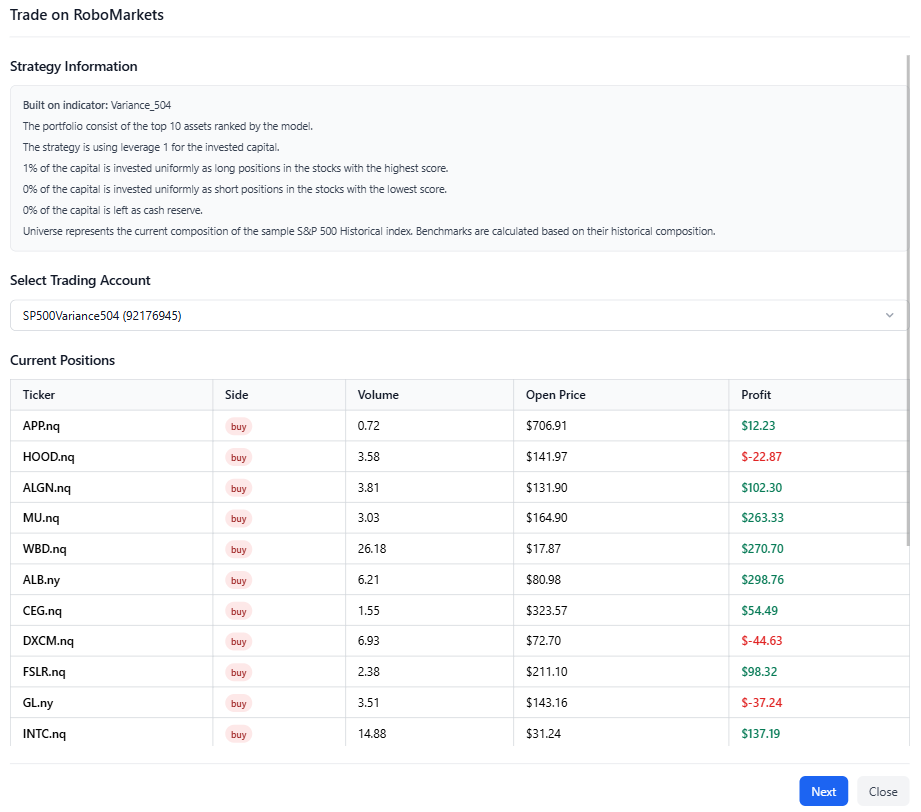
- Open the Strategy Detail page
- Click Trade on RoboMarkets
In the Select Trading Account section, choose the RM account where the AP strategy will be applied. The app displays your current holdings and a summary of the strategy.
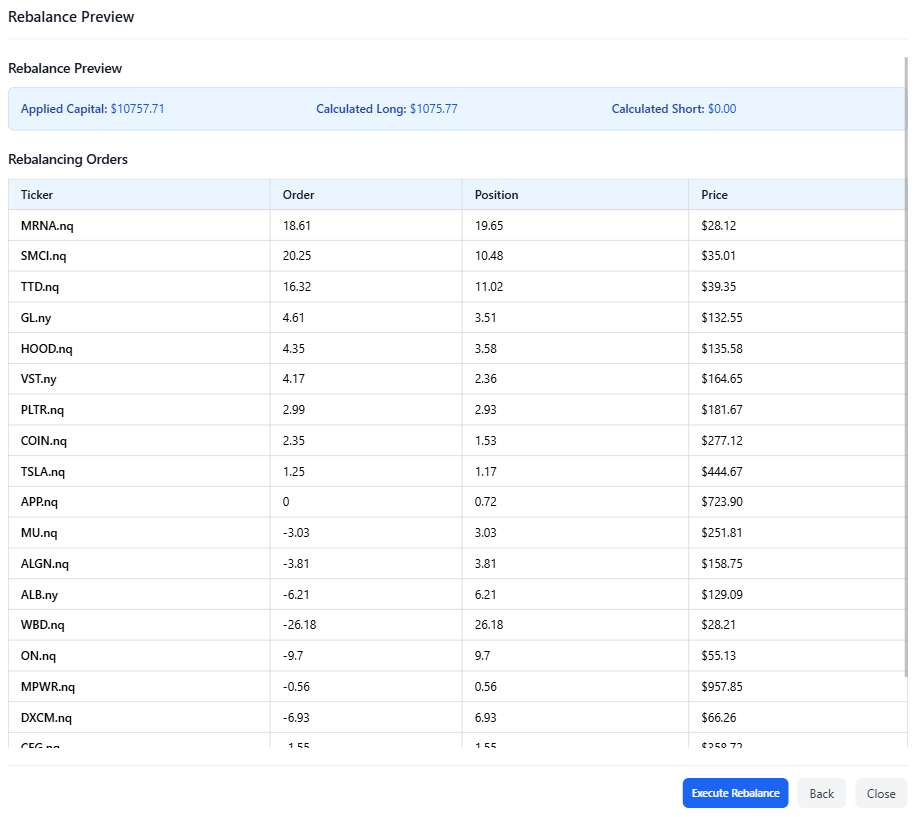
Rebalance Preview
After clicking Next, you will see the Rebalance Preview showing:
- planned orders (Order)
- resulting composition of the portfolio (Position)
After reviewing, click Execute Rebalance to perform all orders.
New Composition
In the final step, you will see the updated portfolio state, including possible order failures and their explanations.
Order Generation Methodology
The Rebalancing App considers RM’s execution rules, account type, and available capital. It is designed to execute orders efficiently and cost-effectively. However, execution is not always guaranteed. We strongly recommend reviewing the portfolio directly in the RM terminal after each semi-automatic rebalance and manually adjusting anything that requires correction. Below is a detailed breakdown of the individual steps involved in order creation.
Rebalance Preview – Detailed Logic
- Load strategy scores for all Universe tickers for the current month.
- Verify that the number of available tickers exceeds the required number of longs + shorts.
- Fetch open RM positions, account type, and equity. On Cash accounts, “equity” equals
my_portfolio. - Convert equity to USD if the account is in a different currency (via exchangerate-api.com).
- If the account is Cash, verify that the leverage in the strategy backtest equals 1 and the strategy is long-only.
- Based on leverage, long/short ratio, and number of tickers, compute the target USD value per long and short positions.
- Assign
.nq/.nysuffixes to tickers. - Select the required number of long and short tickers.
- Determine “backup tickers” = 20% of the number of backtest stocks.
- For existing positions, use
close_price. For new ones, fetchlast_price. - Calculate the current value of each position (
volume * price). - Compute order sizes needed to reach the target position value.
- If an order for an open position is < 1 and does not cross zero, round it to zero (to avoid unnecessary fees).
- Define buy_power: Cash account: equity, Margin account: equity * 4.
- For new positions with order < 1, verify that
order +1does not exceed buy_power. If it does, the stock is too expensive → remove it. - If more than 20% of long/short tickers are removed, return an error.
- Load prices for backup tickers and repeat the affordability check.
- If there are not enough backup tickers to fill the rebalance, return an error.
- For tickers with open positions that will remain open, compare RM maximum leverage with AP required leverage. If AP requires higher leverage → error.
- Sort tickers by order size. On Cash accounts, the largest new order is rounded down (if > 1).
- For the frontend, sort by final position size (volume + order) and include information about removed tickers.
Execute Rebalance – Detailed Logic
- The app repeats steps 1–21 from the preview to use the most recent prices and produce an updated order batch.
- For each order, if the API does not accept it for any reason, the ticker and the reason are recorded and later displayed on the FE. Processing then continues with the next ticker in the sequence.
- First, positions that are not part of the rebalance (those marked as “close”) are closed.
- Next, tickers where the size of the new position is < 1 are processed, including those crossing zero. They are sorted from the smallest order, with buy orders handled first. An order of +1 is sent, then the system waits 3 seconds, and then a counter-order of 1 is sent. If the first order does not succeed, the counter-order is not sent.
- After that, the remaining orders (> 1, i.e., without a counter-order) are sent, again sorted by order size, with buy orders processed first.
- New current positions are fetched from the RM API.
- The rebalance timestamp is saved to the account in the database.
- The frontend receives the list of tickers that succeeded, the list of tickers that failed (with the reason), and the new positions.
- The only time delay occurs when sending counter-orders.
Supported Universes
The Rebalancing App currently supports equities from the S&P 500 index.